Text Diff Checker: How to Compare Two Texts Side by Side
Learn how to compare two texts, spot differences instantly, and merge changes using a free online diff checker tool.
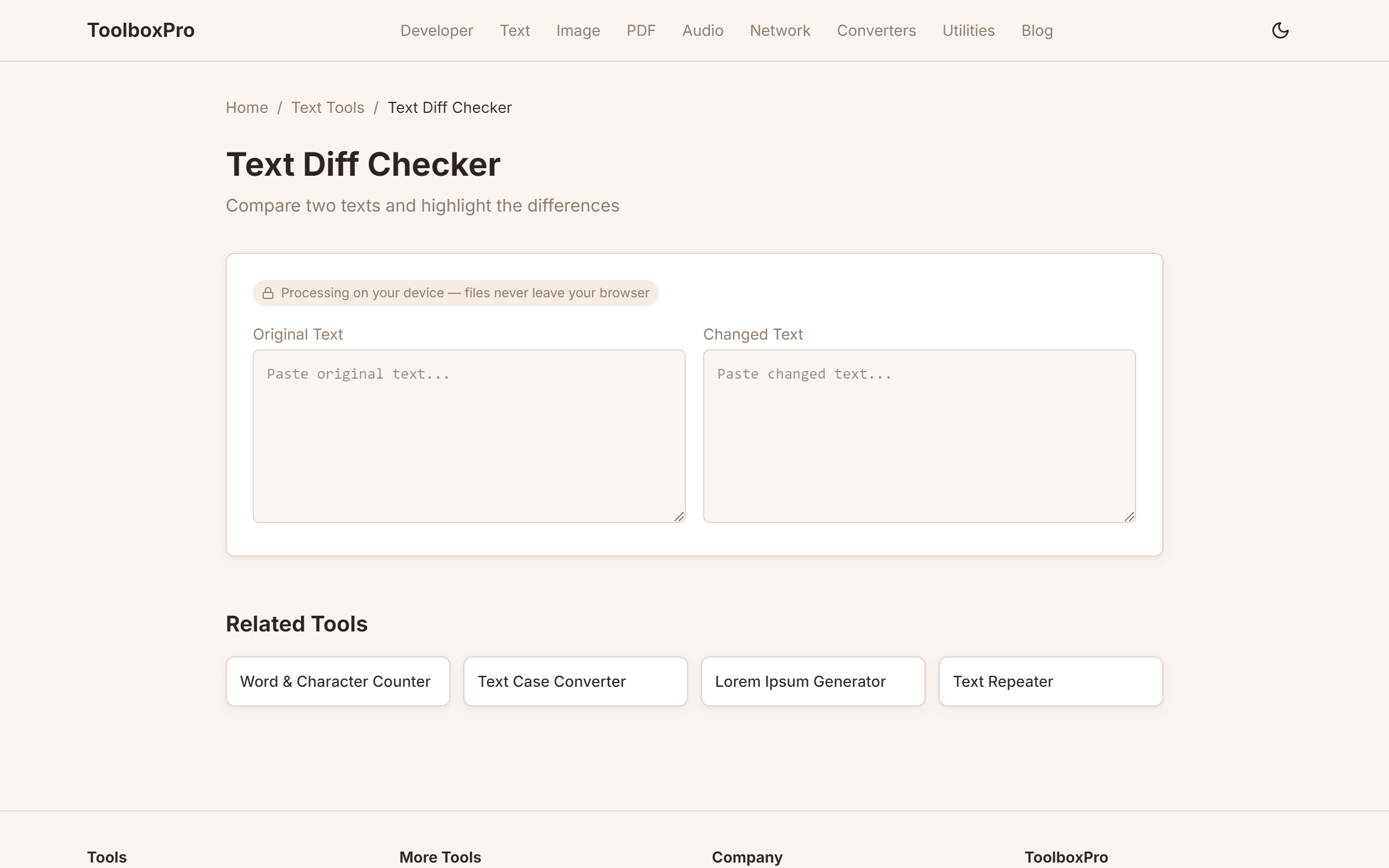
What is a Text Diff Checker?
A text diff checker (short for "difference checker") compares two blocks of text and highlights what's different between them. Whether you're reviewing code changes, comparing document versions, or checking for plagiarism, a diff tool shows you exactly what changed — down to the individual character.
Diff tools are a staple of version control systems like Git, but standalone diff checkers are invaluable when you need a quick comparison without setting up a repository.
Why Use a Diff Checker?
How Diff Checking Works
Line-by-Line Diff
The most common mode. Each line is compared, and the tool shows:
Character-Level Diff
For detailed editing, character diff shows changes *within* a line. If you changed "colour" to "color", a line diff shows the whole line changed, but a character diff highlights only the "u" as removed and the "r" as added.
Word-Level Diff
A middle ground between line and character. Adds and removals are shown per word rather than per character — ideal for prose and documentation.
How to Use a Diff Checker
Step 1: Prepare Your Texts
Copy the original text into the left panel and the modified text into the right panel. The order matters — the tool shows what changed *from* the left *to* the right.
Step 2: Compare Instantly
Most diff tools update in real-time as you type or paste. You don't need to click any buttons — the highlights appear immediately.
Step 3: Review the Output
Scan through the highlighted differences:
| Color | Meaning | What to Check |
|---|---|---|
| Green | Added lines | Verify new content is correct |
| Red | Removed lines | Confirm deletions were intentional |
| Yellow highlight | Changed within a line | Double-check modified words/chars |
Step 4: Copy or Merge
Once you're satisfied, you can:
Practical Examples
Example 1: Document Revision
Original:
\\\`
The quick brown fox jumps over the lazy dog.
\\\`
Revised:
\\\`
The quick brown fox leaps over the lazy cat.
\\\`
Diff result:
Example 2: Code Change
Before:
\\\`javascript
function greet(name) {
return "Hello, " + name;
}
\\\`
After:
\\\`javascript
function greet(name, time) {
return \Good \${time}, \${name}\;
}
\\\`
Diff result:
Diff Algorithms Explained
Most diff tools (including ours) use the Longest Common Subsequence (LCS) algorithm. It finds the longest sequence of characters that appears in both texts in the same order, then marks everything else as a change.
Modern implementations also use Myers' algorithm, which is optimized for code diffs and produces more readable output by preferring contiguous blocks of changes over scattered single-line differences.
Tips for Clean Diffs
1. Normalize whitespace — trailing spaces and inconsistent indentation create false positives
2. Trim blank lines — extra blank lines at the start or end show as additions/removals
3. Use consistent line endings — Windows (CRLF) vs. Unix (LF) differences are invisible but show as full-line changes
4. Sort your inputs — for unordered lists, sorting both sides before comparing reduces noise
FAQ
Is the comparison case-sensitive? Yes, by default. Most diff tools have a "Case insensitive" toggle for when you only care about content, not casing.
Can I compare very large files? Yes. Our diff checker handles files up to 1MB comfortably. For larger files, performance depends on your browser's memory.
Does it work with code vs. plain text? It works with any text. Programming languages benefit from the line-by-line view, while prose is better with the word-level view.
Are my texts uploaded to a server? No. Everything runs in your browser using JavaScript. Your data never leaves your device.
What's the difference between unified diff and side-by-side? Unified diff shows changes in a single column with context lines. Side-by-side (which our tool uses) shows both versions simultaneously — easier to read for most use cases.
Diff Algorithms: A Brief Introduction
Understanding the algorithm behind your diff tool helps you interpret results. The two most common approaches are:
Longest Common Subsequence (LCS)
LCS finds the longest sequence of lines (or characters) that appear in both texts in the same relative order. Everything not in that sequence is marked as added or removed. LCS is intuitive but can produce noisy diffs when lines are reordered — a moved block shows as a deletion plus an addition rather than a move.
Myers' Algorithm
Developed by Eugene Myers in 1986, this algorithm finds the shortest edit script (minimum insertions and deletions) between two sequences. Git uses Myers' algorithm by default because it produces clean, contiguous diff blocks — it prefers grouping changes together rather than scattering single-line diffs across the output. Most modern diff tools, including ours, use a Myers-based implementation for readability.
Patience Diff
A lesser-known variant that anchors on unique matching lines (lines that appear exactly once in both texts) and then recursively diffs between those anchors. Patience diff excels at reordering changes — moved functions or paragraphs show up cleanly rather than as delete-then-add pairs. It's available as git diff --patience and is preferred for refactoring commits.
Code Review Best Practices with Diff Tools
1. Review in small batches — Studies show developers miss defects when reviewing more than 400 lines of diff at once. Break large PRs into reviewable chunks (under 300 lines changed) so each diff is scannable in under 15 minutes.
2. Focus on logic, not style — Use the diff to spot logic errors, missing edge cases, and security issues. Style nitpicks should be handled by linters (ESLint, Prettier, RuboCop) configured to run automatically, not by human reviewers staring at highlighted lines.
3. Check the "why," not just the "what" — A diff shows *what* changed. The PR description and commit messages should explain *why*. If a diff removes error handling, the reviewer needs context on whether it's intentional (dead code cleanup) or accidental.
4. Verify tests cover changed code — Green-highlighted additions should include corresponding test additions. If new code appears without tests, flag it in review.
Version Control Integration
Standalone diff checkers complement Git without replacing it. Here's how they fit into a version control workflow:
# Generate a diff file for offline comparison
git diff main..feature-branch > changes.diff
# Paste changes.diff into a diff checker for readable review
Common Mistakes to Avoid
1. Comparing with mismatched line endings — If one text uses CRLF (Windows) and the other uses LF (Unix), every line shows as changed. Normalize line endings before comparing: run dos2unix or configure your editor to use consistent endings.
2. Ignoring whitespace-only changes — Tabs vs. spaces, trailing whitespace, and indentation shifts create false positives. Enable "ignore whitespace" mode if your diff tool supports it, or run a formatter on both texts first.
3. Comparing out of order — If you paste the new version on the left and the old on the right, additions appear as deletions and vice versa. Always put the original on the left, modified on the right.
Real-World Examples
Detecting Plagiarism in Student Submissions
Paste two essays side by side. Matching paragraphs show as unchanged (white), while paraphrased sections show as modified (yellow word-level highlights). This visual approach is faster than manual reading for spotting copied-and-lightly-edited content.
Auditing Configuration File Changes
Compare yesterday's nginx.conf against today's. A single changed character in a server_name or proxy_pass directive can break production. The character-level diff catches it instantly.
Comparison: Diff Checkers vs. Git Diff vs. IDE Diff
| Tool | Best For | Speed | Setup Required |
|---|---|---|---|
| **Online Diff Checker** | Quick one-off comparisons, no repo | Instant | None |
| **Git Diff** | Versioned code, commit history | Fast | Git repository |
| **IDE Diff (VS Code, IntelliJ)** | Local file comparison, merge conflicts | Fast | IDE open |
| **Meld / Beyond Compare** | Folder-level diffs, 3-way merges | Medium | Desktop install |
When to use what: Reach for an online diff checker for quick, ad-hoc text comparisons (no setup, works on any device). Use Git diff for versioned code review. Use IDE diff tools for local file comparisons and merge conflict resolution within your development environment.
Try it yourself with our free online tool:
Try Text Diff Checker: How to Compare Two Texts Side by Side →