How to Resize Images Online Without Losing Quality
Learn how to resize images online without sacrificing quality — perfect for web developers, designers, and content creators who need optimized images fast.
How to Resize Images Online Without Losing Quality
Resizing images seems simple — just make them smaller, right? But anyone who has stretched a thumbnail into a blurry mess or compressed a product photo until it looks pixelated knows that resizing done wrong can ruin an image. The challenge is reducing dimensions or file size while keeping the image crisp, detailed, and professional.
Whether you're optimizing images for a website, preparing assets for social media, or resizing photos for email, getting the balance between dimensions and quality is essential. This guide covers the principles of high-quality image resizing, the best techniques to avoid quality loss, and how to use the free online Image Resizer to get perfect results every time.
What Happens When You Resize an Image?
Understanding what goes on under the hood helps you make better decisions when resizing.
Downsampling (making an image smaller) involves removing pixels. The challenge is deciding which pixels to keep and which to discard. A naive algorithm simply drops every other pixel, resulting in jagged edges and a harsh, aliased look. A good resizing algorithm (interpolation) analyzes groups of pixels and creates new, averaged pixel values that preserve the visual information.
Upsampling (making an image larger) involves creating new pixels where none existed. This is fundamentally harder — you're trying to invent detail that isn't there. No algorithm can truly add resolution; the best you can do is a smooth, believable interpolation. That's why upsampling more than 2x always degrades quality noticeably.
| Operation | Information Change | Quality Risk |
|---|---|---|
| Downsample (reduce size) | Data discarded | Low — good algorithms preserve appearance |
| Upsample (enlarge) | New data synthesized | High — detail cannot be created from nothing |
| Change aspect ratio | Distortion risk | Medium — requires proper cropping first |
| Change resolution only (DPI) | Metadata only | None — pixel dimensions unchanged |
The Key to Quality Resizing: Interpolation Algorithms
The single most important factor in quality resizing is the interpolation algorithm. Different algorithms suit different types of images and scaling factors. Here are the most common ones and when to use them:
Nearest Neighbor — The simplest algorithm. It picks the closest pixel value without any averaging. Results are blocky and pixelated. Use only for pixel art or images where you want to preserve hard, single-pixel boundaries.
Bilinear Interpolation — Averages the 2x2 nearest pixels. It's fast and produces smoother results than nearest neighbor, but can look soft or slightly blurry, especially when downsampling significantly.
Bicubic Interpolation — Averages the 4x4 nearest pixels with weighted influence. It's the standard choice for most photo editing and produces sharp, natural-looking results. Bicubic is the default in Photoshop and most professional tools.
Lanczos Interpolation — A more sophisticated algorithm that uses an 8x8 pixel window with a sinc-based weighting function. Lanczos produces the sharpest results with the least aliasing, making it ideal for reducing high-resolution photographs. It's slightly slower than bicubic but delivers the best quality.
\\\`
Algorithm Quality Ranking (best to worst):
1. Lanczos — Sharpest, least artifacts
2. Bicubic — Great all-rounder, slightly softer
3. Bilinear — Smooth but can be blurry
4. Nearest Neighbor — Pixelated, artifacts
\\\`
| Algorithm | Best For | Speed | Quality |
|---|---|---|---|
| Nearest Neighbor | Pixel art, retro graphics | Fastest | Lowest |
| Bilinear | Quick previews, thumbnails | Fast | Low-Medium |
| Bicubic | Photos, general use | Moderate | High |
| Lanczos | High-quality downsampling, prints | Slowest | Highest |
When you use /tools/image-resizer, Lanczos interpolation is used by default, so your downsized images retain maximum sharpness and detail.
Resizing for the Web: Best Practices
#### 1. Always Resize to Display Dimensions
Serving a 4000x3000 pixel image when it's displayed at 400x300 is the #1 performance mistake on the web. The browser still downloads the full-resolution image, decodes it into memory, and then scales it down — all of which wastes bandwidth and CPU.
Correct approach: resize the image to its intended display size (or 2x for Retina/HiDPI displays) before uploading.
\\\`html


\\\`
Run your images through /tools/image-resizer to create display-sized versions before uploading to your site. A properly resized image can be 90% smaller than the original with zero visible quality loss.
#### 2. Maintain Aspect Ratio
Stretching an image to fit non-matching dimensions distorts the subject. Always lock the aspect ratio when resizing. If you need a specific target dimension (e.g., a square 800x800 thumbnail for a product listing), crop the image to the correct aspect ratio first, then resize.
Common aspect ratios for web:
| Use Case | Recommended Dimensions | Aspect Ratio |
|---|---|---|
| Blog featured image | 1200x628 | 1.91:1 |
| Social media (OG image) | 1200x630 | 1.91:1 |
| Product thumbnail | 800x800 | 1:1 (square) |
| Hero banner (desktop) | 1920x800 | 2.4:1 |
| Profile photo | 400x400 | 1:1 (square) |
| Email header | 600x200 | 3:1 |
#### 3. Choose the Right Output Format
Resizing is just one part of image optimization. The combination of correct dimensions and the right format multiplies your savings:
Step-by-Step: Resizing Images on ToolboxPro
The Image Resizer on ToolboxPro makes high-quality resizing simple:
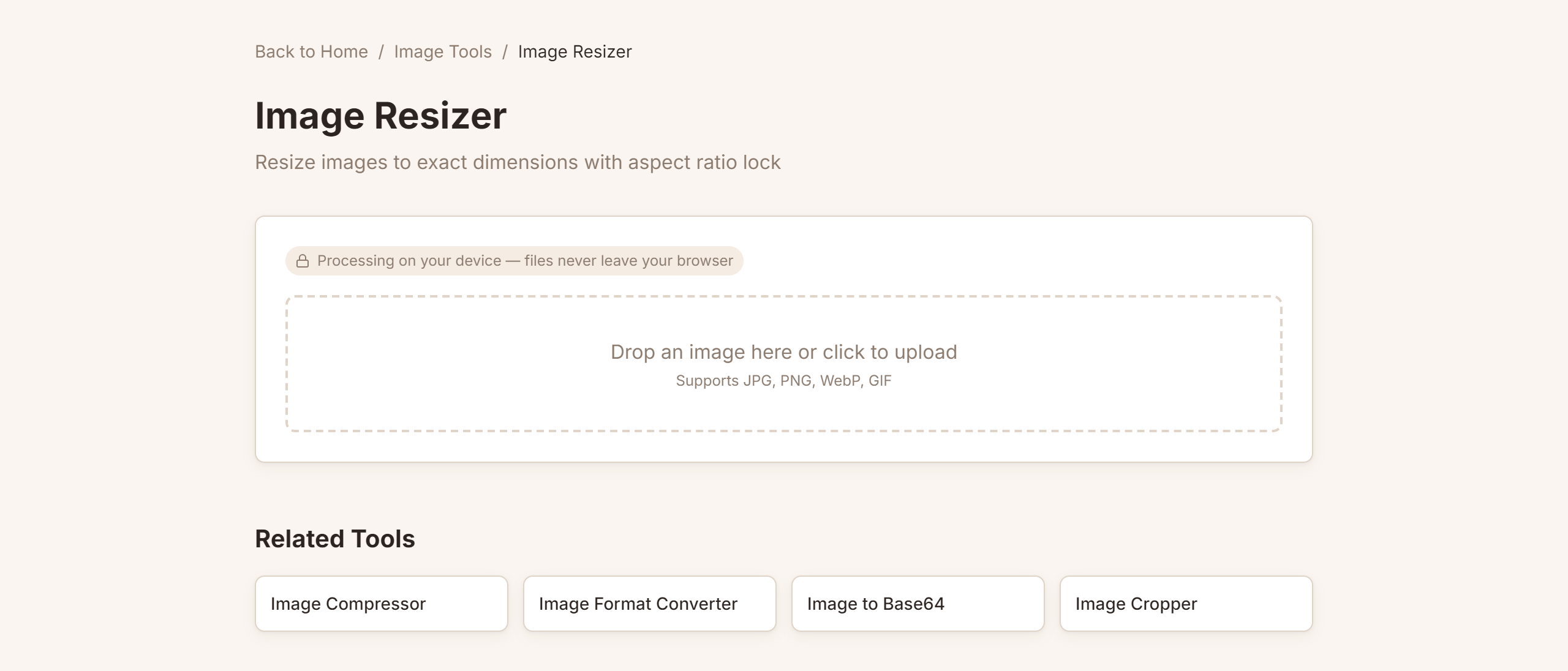
1. Upload your image — Drag and drop or click to select from your device. Supported formats: JPEG, PNG, WebP, GIF, BMP, TIFF.
2. Enter target dimensions — Set width, height, or both. The tool preserves aspect ratio automatically by default, or you can customize independently.
3. Choose output format — Select JPEG, PNG, or WebP as your output format. Keep it the same as the original or convert as part of the resize.
4. Set quality — Adjust the quality slider from 1-100. For web use, quality 75-85 offers the best balance of visual fidelity and file size.
5. Download the result — Your resized, re-encoded image is ready in seconds. No uploads to a server, no sign-ups, no watermarks.
The entire process runs locally in your browser, so your images never leave your device.
FAQ
Q: Can I enlarge a small image without losing quality?
A: No algorithm can truly add detail that wasn't captured. Upscaling always reduces perceived sharpness. For best results, limit upsampling to 2x or less and use Lanczos interpolation. AI upscaling tools (like ESRGAN or Topaz Gigapixel) can synthesize plausible detail, but they change the image content and can introduce artifacts.
Q: What's the best resolution for web images in 2026?
A: For standard displays, use the exact display size. For Retina/HiDPI displays, use 2x the display size. A common approach: serve 1920px-wide hero images for 1920px screens (standard) and 3840px for Retina. Use \
Q: Does resizing reduce image quality if I use Lanczos interpolation?
A: Downsampling with a good interpolation algorithm like Lanczos preserves visual quality extremely well. The perceived sharpness and detail remain intact even at 50% or 25% of original dimensions, because the algorithm intelligently averages pixel groups rather than discarding them arbitrarily.
Q: Should I resize before or after applying image filters?
A: Resize last. Apply filters, color corrections, and other edits at the original resolution, then resize as the final step. This preserves the maximum detail for your edits and avoids interpolating filtered pixels twice.
Q: What's the difference between resizing and cropping?
A: Resizing changes the pixel dimensions of the entire image (e.g., 4000x3000 → 800x600). Cropping removes a section of the image to change the visible area (e.g., extracting a 800x800 square from the center). For best results, crop to your desired aspect ratio first, then resize to your target dimensions.
Q: Can I resize multiple images at once?
A: The Image Resizer processes one image at a time. For batch resizing, consider using desktop tools like ImageMagick (\mogrify -resize 800x600 *.jpg\) or integrate resizing into your build pipeline with sharp or squoosh-cli.
Conclusion
Resizing images online without losing quality is entirely achievable when you understand the fundamentals: choose the right interpolation algorithm, maintain aspect ratio, resize to display dimensions, and pair resizing with the correct output format. The combination of Lanczos interpolation, proper dimensions, and quality-aware format selection will give you images that look great and load fast.
The next time you need to resize an image, try the free Image Resizer at ToolboxPro — it runs entirely in your browser, uses Lanczos interpolation for maximum quality, and gives you full control over dimensions, format, and compression level.
No quality sacrificed.
Try it yourself with our free online tool:
Try How to Resize Images Online Without Losing Quality →