Image Filters Online: Apply Grayscale, Sepia, Blur and More
Transform your photos with instant image filters. Apply grayscale, sepia, blur, brightness, contrast, and many more effects online.
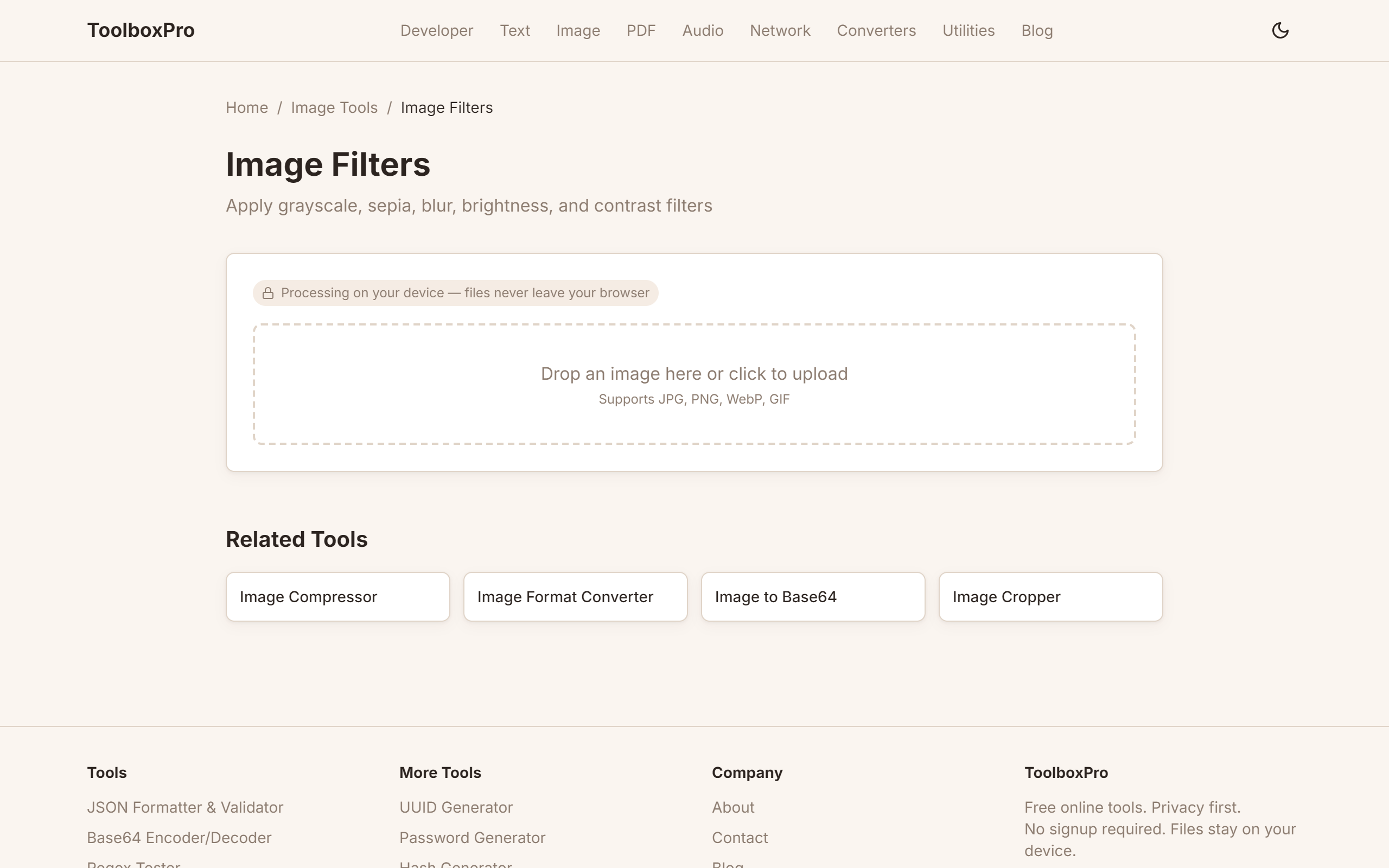
What are Image Filters?
Image filters are algorithms that modify the pixels of an image to create a visual effect. From the classic black-and-white conversion to artistic blurs and color shifts, filters let you transform the mood and style of any photo without needing Photoshop or professional editing skills.
Filters work by manipulating pixel values — adjusting brightness, contrast, color channels, or applying convolution matrices that blend neighboring pixels.
Common Image Filters Explained
Grayscale
Converts the image to black and white by removing color information. Each pixel's RGB values are combined into a single luminance value:
\\\`
Gray = 0.299 × R + 0.587 × G + 0.114 × B
\\\`
These weights match human perception — we're most sensitive to green, least sensitive to blue.
Use when: Creating a classic look, reducing distractions from color, preparing images for printing on black-and-white media.
Sepia
Gives the image a warm brownish tone reminiscent of 19th-century photographs. After converting to grayscale, each pixel is tinted with warm tones:
\\\`
Output R = Gray × 1.2
Output G = Gray × 0.93
Output B = Gray × 0.55
\\\`
Use when: Creating vintage, nostalgic, or historical-feeling images.
Invert
Flips all colors to their opposites on the color wheel. Black becomes white, red becomes cyan, green becomes magenta.
\\\`
Output R = 255 - Input R
Output G = 255 - Input G
Output B = 255 - Input B
\\\`
Use when: Creating negative-image effects, artistic compositions, or accessibility-focused high-contrast views.
Brightness
Adds or subtracts a constant value from all RGB channels:
\\\`
Output = Input + brightness_value
\\\`
Positive values make the image lighter; negative values make it darker. The result is clamped to 0-255.
Use when: Correcting underexposed or overexposed photos, matching lighting across a series of images.
Contrast
Stretches or compresses the range of pixel values. High contrast makes darks darker and lights lighter; low contrast creates a flatter, muted look:
\\\`
Output = ((Input / 255 - 0.5) × contrast_factor + 0.5) × 255
\\\`
Use when: Making images pop (increase contrast) or creating soft, dreamy looks (decrease contrast).
Blur
Averages each pixel with its neighbors to create a softening effect. The most common is Gaussian blur, which uses a weighted average where nearby pixels have more influence than distant ones:
\\\`
// A 3×3 Gaussian kernel
[1, 2, 1]
[2, 4, 2]
[1, 2, 1] × (1/16)
\\\`
Use when: Blurring backgrounds, censoring sensitive information, creating depth-of-field effects, or smoothing skin tones.
Saturation
Controls the intensity of colors. At 0%, the image is grayscale. At 100%, colors are natural. At 200%, colors are intensely vivid (sometimes called "HDR effect").
Use when: Creating vibrant social media graphics (increase) or muted, professional looks (decrease).
Hue Rotate
Shifts all colors around the color wheel by a given angle. Rotating by 180 degrees creates a complementary color scheme.
Use when: Quick color palette changes, creative effects, or correcting color casts.
How to Apply Filters Online
Using ToolboxPro
1. Visit our Image Filters tool
2. Upload an image by clicking or drag-and-drop
3. Browse through available filters in the toolbar
4. Click any filter to apply it instantly
5. Adjust the intensity slider for fine control
6. See a live before/after preview
7. Download the filtered image as JPG, PNG, or WebP
Available Filters
| Filter | What It Does | Best For |
|---|---|---|
| Grayscale | Removes all color | Classic B&W photography |
| Sepia | Warm brown tone | Vintage photos |
| Invert | Reverses all colors | Negative effect |
| Brightness | Adjusts lightness | Exposure correction |
| Contrast | Stretches tonal range | Making images pop |
| Blur | Softens details | Background blur |
| Sharpen | Enhances edges | Fixing slightly soft photos |
| Saturation | Adjusts color intensity | Vibrant or muted looks |
| Hue Rotate | Shifts all colors | Creative color changes |
| Opacity | Adjusts transparency | Overlay effects |
Advanced: Stacking Filters
Real image editing rarely uses a single filter. Try combining them:
Vintage Portrait Effect:
1. Apply Sepia (intensity: 70%)
2. Lower Contrast (-20%)
3. Add slight Blur (radius: 1px)
4. Reduce Saturation (60%)
Dramatic B&W:
1. Apply Grayscale
2. Increase Contrast (+40%)
3. Increase Sharpen (strength: 2)
4. Vignette effect (if available)
Dreamy Soft Look:
1. Apply Blur (radius: 3px)
2. Reduce Contrast (-20%)
3. Increase Brightness (+15%)
4. Reduce Saturation (80%)
The Canvas API Approach
If you're a developer, here's how to apply a grayscale filter using the HTML5 Canvas API:
\\\`javascript
function applyGrayscale(imageData) {
const pixels = imageData.data;
for (let i = 0; i < pixels.length; i += 4) {
const gray = 0.299 * pixels[i] + 0.587 * pixels[i+1] + 0.114 * pixels[i+2];
pixels[i] = gray; // Red
pixels[i+1] = gray; // Green
pixels[i+2] = gray; // Blue
// pixels[i+3] = alpha (unchanged)
}
return imageData;
}
\\\`
FAQ
Are image filters applied to the original file? No. Filters are applied to a copy. The original image is never modified — you can always start over.
Can I undo a filter? Yes. Our tool has an undo/redo stack, and you can reset to the original image at any time.
What's the maximum image size? Our filter tool handles images up to 4096×4096 pixels comfortably. Larger images may be slower depending on your device.
Do filters work on transparent PNGs? Yes. Alpha channel (transparency) is preserved through all filter operations.
Can I apply multiple filters at once? Yes. Apply them one at a time and each builds on the previous result. The undo stack lets you step back through individual filter applications.
Are my images uploaded to a server? No. All filter processing runs in your browser using the Canvas API. Your images stay on your device.
Advanced Tips
The CSS `filter` Property Explained
Browser-based image filters use the same filter CSS property you can apply to any DOM element. Understanding the underlying functions lets you replicate filter effects in your own web projects:
.image-vintage {
  filter: sepia(0.4) contrast(1.1) brightness(0.95) saturate(1.3);
}
Each function takes a value between 0 and 1 (or higher for amplification):
Chain multiple filters by space-separating them — order matters. sepia() saturate() produces a different result than saturate() sepia() because each operates on the output of the previous.
Performance Optimization for Filtered Images
Filtering large images in the browser can cause jank — dropped frames that make the UI feel sluggish. Optimize with these techniques:
Responsive Image Strategy
Different viewports need different image treatments. A hero image that looks stunning at 1920px wide is wasteful and slow on a 375px mobile screen.
Common Mistakes
Real-World Use Cases
Try it yourself with our free online tool:
Try Image Filters Online: Apply Grayscale, Sepia, Blur and More →