How to Preview and Test HTML Online in Real Time
Learn how to preview, test, and debug HTML code instantly in your browser with a free online HTML preview tool. Write, edit, and see results in real time without any setup.
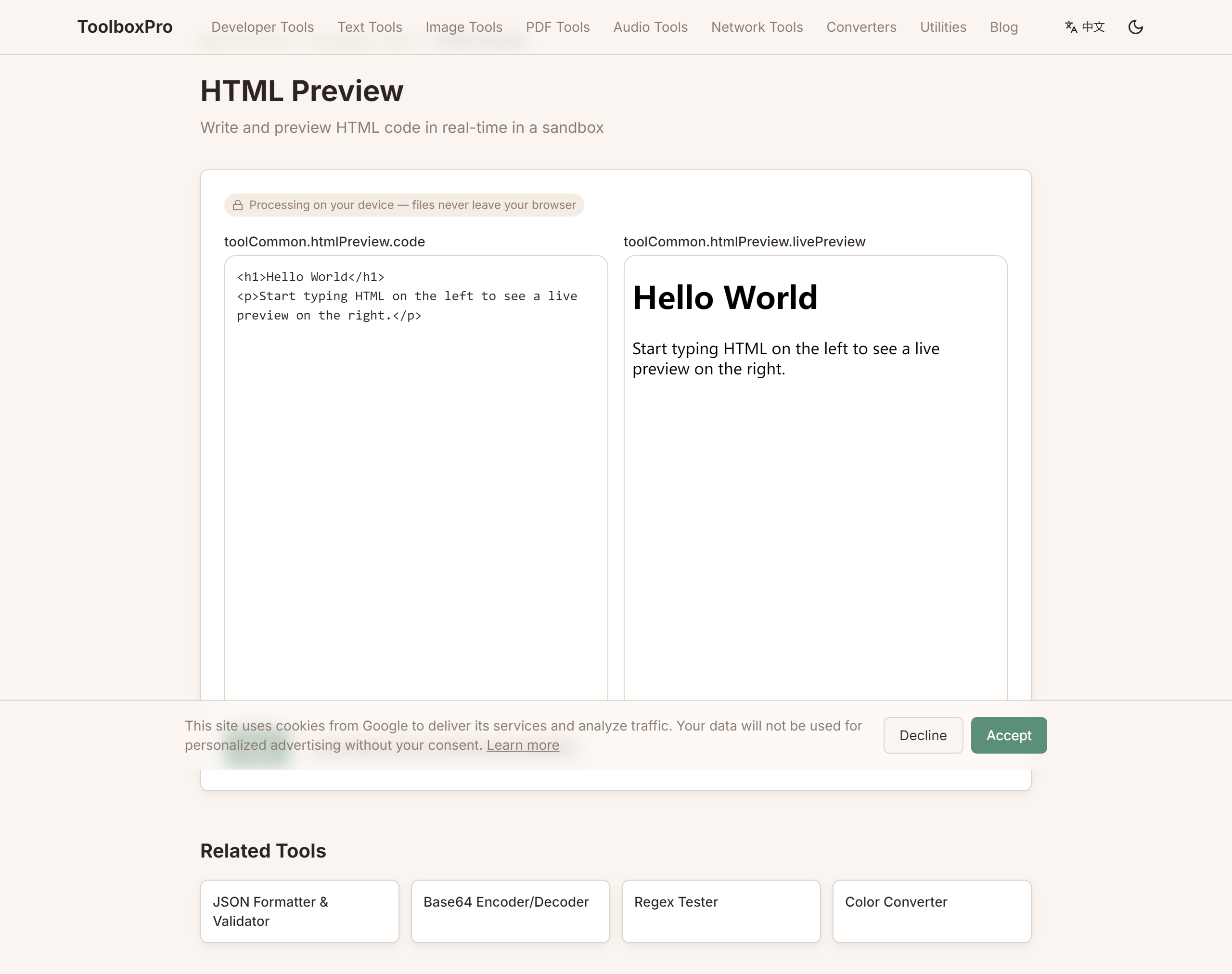
How to Preview and Test HTML Online in Real Time
HTML is the backbone of the web. Every webpage you visit — from a simple blog post to a complex single-page application — is rendered from HTML. Whether you're a beginner learning web development, a designer prototyping a layout, or a seasoned developer debugging a rendering issue, being able to preview HTML instantly is essential.
Instead of setting up a local server, creating files, and switching between editors every time you need to test a snippet, a real-time HTML preview tool lets you write, edit, and see results all in one place. This guide explores why live HTML preview matters, what features to look for, and how to get the most out of trytoolboxpro.com/tools/html-preview.
Why Live HTML Preview Changes Your Workflow
Previewing HTML in real time eliminates the edit-save-reload cycle that slows down front-end work. Here are the key benefits:
Instant feedback. Every keystroke updates the rendered output immediately. You can see how a \ Zero setup required. No need to install Apache, Nginx, or even a local dev server. No file system operations — just open the tool and start typing. This makes it ideal for quick experiments, prototyping UI components, and testing snippets from Stack Overflow or documentation sites. Safe sandbox. When you preview HTML in an online tool, the code runs in a sandboxed iframe. This means you can test experimental APIs, third-party embeds, or potentially unsafe markup without affecting your actual website or local environment. Cross-device access. An online preview tool works on any device with a browser — your laptop, tablet, or even your phone. This is invaluable when you need to test responsive layouts on different screen sizes without cloning a repo everywhere. Not all HTML previewers are created equal. Here's what separates a powerful tool from a basic one: Our tool at /tools/html-preview includes all of these features and runs entirely in your browser — no data is sent to any server. Using an online HTML previewer is straightforward. Here's a step-by-step guide using ToolboxPro's HTML Preview tool. #### Step 1: Open the Tool Navigate to the HTML Preview tool at trytoolboxpro.com/tools/html-preview. You'll see a split-screen interface: a code editor on the left and a live preview panel on the right. #### Step 2: Write Your HTML Start typing your HTML in the editor panel. The tool supports the full HTML5 specification, including semantic elements like Key Features of a Great HTML Preview Tool
Feature Why It Matters Real-time rendering Output updates as you type, no manual refresh Syntax highlighting Colored markup makes errors easy to spot Separate HTML/CSS/JS panels Organize code and debug faster Responsive viewport toggle Preview how your HTML looks on mobile, tablet, and desktop Download / copy output Save or share your work instantly Dark mode Reduces eye strain during long coding sessions Console output See JavaScript errors and log messages without opening DevTools How to Use the HTML Preview Tool
, , , and . You can also include inline CSS in