How to Pick Colors Online: A Complete Guide to Color Selection
Master color picking online with this complete guide. Learn HEX, RGB, HSL formats, color theory basics, and how to use a free color picker tool to select the perfect palette for your projects.
How to Pick Colors Online: A Complete Guide to Color Selection
Color is one of the most powerful tools in a designer's or developer's arsenal. The right color palette can make a website feel polished and professional, while a mismatched scheme can confuse visitors and drive them away. Whether you're building a brand identity, designing a user interface, or debugging CSS styles, knowing how to pick and manipulate colors efficiently is an essential skill.
This guide covers everything you need to know about selecting colors online — from understanding color formats and color theory basics to practical workflows using free tools like ToolboxPro's Color Picker.
Understanding Color Formats
Before you can pick colors effectively, you need to understand the different ways colors are represented on the web. Each format has its strengths, and knowing when to use which one will make you more productive.
#### HEX (Hexadecimal)
HEX is the most common color format on the web. It consists of a hash symbol followed by six hexadecimal digits, where the first two represent red, the middle two green, and the last two blue.
\\\`
#FF5733 → Red: FF (255), Green: 57 (87), Blue: 33 (51)
#000000 → Black
#FFFFFF → White
#6366F1 → Indigo (popular Tailwind color)
\\\`
HEX also supports a shorthand three-digit form when each channel uses duplicate digits: \#F00\ is equivalent to \#FF0000\ (pure red). Some modern browsers also support 8-digit HEX (\#RRGGBBAA\) for alpha transparency.
#### RGB (Red, Green, Blue)
RGB uses decimal values from 0 to 255 for each channel. The syntax is \rgb(red, green, blue)\.
\\\`css
/* Same colors as above, in RGB */
rgb(255, 87, 51) /* #FF5733 */
rgb(0, 0, 0) /* Black */
rgb(255, 255, 255) /* White */
rgb(99, 102, 241) /* Indigo */
\\\`
RGB is more intuitive to adjust programmatically since it uses base-10 numbers. The \rgba()\ variant adds an alpha channel for opacity: \rgba(99, 102, 241, 0.5)\.
#### HSL (Hue, Saturation, Lightness)
HSL describes colors in a way that's closer to how humans think about them. The syntax is \hsl(hue, saturation%, lightness%)\:
\\\`css
hsl(9, 100%, 60%) /* #FF5733 — vibrant orange-red */
hsl(0, 0%, 0%) /* Black */
hsl(0, 0%, 100%) /* White */
hsl(239, 84%, 67%) /* #6366F1 — indigo */
\\\`
HSL is invaluable for creating color palettes because you can keep the same hue and just vary saturation and lightness for a cohesive look. Use \hsla()\ for alpha transparency.
Color Format Comparison
| Format | Best For | Pros | Cons |
|---|---|---|---|
| HEX | CSS values, design handoffs | Compact, universally supported | Hard to read and adjust manually |
| RGB | Programmatic color manipulation | Base-10 numbers, easy to compute | Verbose syntax |
| HSL | Creating color palettes, theming | Human-readable, intuitive adjustments | Less common in design tools |
| CMYK | Print design, physical media | Matches printer ink behavior | Not supported in CSS |
| LAB/OKLCH | Perceptually uniform gradients | Most accurate to human vision | Limited browser support |
Why Use an Online Color Picker?
An online color picker brings together all of these formats in one interface, letting you:
1. Convert between formats instantly — See the HEX, RGB, HSL, and even CMYK representations of any color side by side.
2. Preview colors visually — See the actual color on screen instead of guessing from numeric values.
3. Copy values in your preferred format — Grab the code in the exact syntax your framework or CSS needs.
4. Pick colors from your screen — Advanced tools let you sample colors from images, websites, or anywhere on your display.
The ToolboxPro Color Picker does all of this and more. It's a free, browser-based tool that requires no downloads or sign-ups.
How to Use the Color Picker Tool
Using an online color picker is straightforward. Here's a step-by-step guide:
#### Step 1: Open the Tool
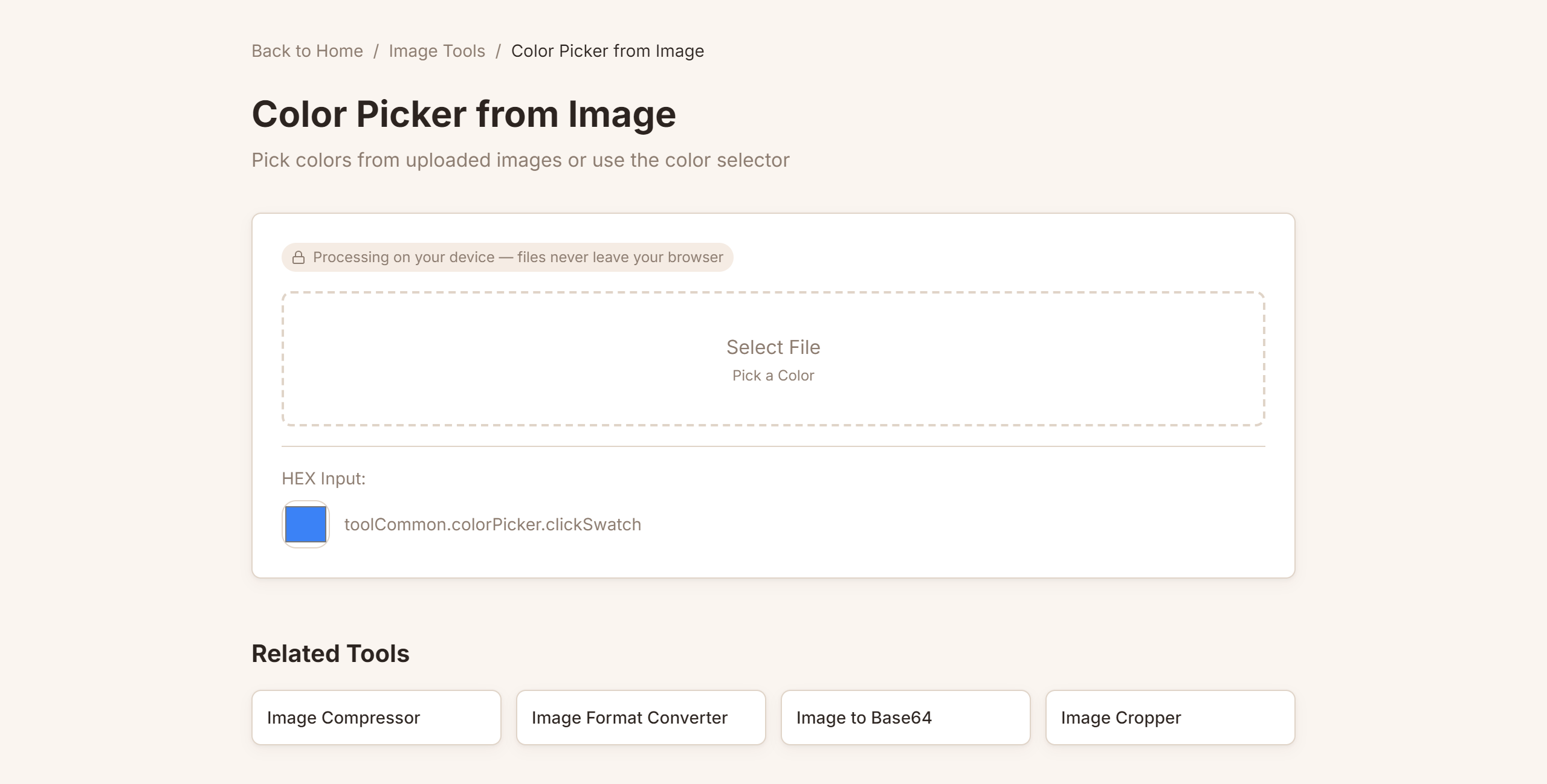
Navigate to trytoolboxpro.com/tools/color-picker. You'll see a visually rich interface with a color canvas (usually a hue-saturation square) and a hue slider.
#### Step 2: Select a Color
Click anywhere on the canvas to choose a color. Drag the hue slider to change the base color. As you move the cursor, the displayed color updates in real time, along with all the format values below.
#### Step 3: Read the Values
Once you've found your color, look at the output panel. It typically shows:
The tool also shows a preview swatch of the selected color.
#### Step 4: Fine-Tune
Use the precise input fields to adjust individual channels. If you know you want a specific red value, type it directly. Most color pickers also include a color history so you can revisit recently selected colors.
#### Step 5: Copy and Use
Click the copy button next to your preferred format. The value is copied to your clipboard, ready to paste into your CSS file, design tool, or application.
\\\`css
/* After picking from the tool, your CSS might look like this */
.btn-primary {
background-color: #6366F1; /* Copied HEX */
color: #FFFFFF;
border: 2px solid hsl(239, 84%, 67%); /* Copied HSL — same color */
}
.btn-primary:hover {
background-color: rgb(79, 82, 193); /* Darker shade for hover */
}
\\\`
Color Theory Basics for Developers
You don't need to be a designer to pick good colors, but understanding a few basics will dramatically improve your results.
#### The Color Wheel
The color wheel arranges hues in a circle. Primary colors (red, yellow, blue) are evenly spaced. Secondary colors (orange, green, purple) sit between them. Tertiary colors fill the remaining gaps.
Common color schemes derived from the wheel include:
| Scheme | Description | Example |
|---|---|---|
| Monochromatic | One hue at varying lightness/saturation | Light blue → Medium blue → Dark blue |
| Analogous | Three adjacent hues | Blue → Blue-green → Green |
| Complementary | Opposite hues | Blue ↔ Orange (high contrast) |
| Triadic | Three evenly spaced hues | Red → Yellow → Blue |
| Split-Complementary | One hue + two neighboring its complement | Blue + Yellow-orange + Red-orange |
#### 60-30-10 Rule
A simple rule for UI color proportions:
This creates visual hierarchy without overwhelming the user. Use your chosen tool at /tools/color-picker to find shades that work together within each proportion.
#### Accessibility and Contrast
Color selection isn't just about aesthetics — it's also about usability. The Web Content Accessibility Guidelines (WCAG) require:
When you pick a color, pair it with a contrasting foreground. A common mistake is using light gray text (#999) on white backgrounds — that's only about 2.7:1 contrast, well below AA compliance.
\\\`
/* Good contrast combination */
body {
background: #FFFFFF; /* White */
color: #1F2937; /* Dark gray — ~16:1 contrast ✓ */
}
/* Poor contrast combination */
body {
background: #FFFFFF; /* White */
color: #9CA3AF; /* Light gray — ~2.7:1 contrast ✗ */
}
\\\`
Practical Workflows Using an Online Color Picker
#### 1. Extracting Colors from a Brand Logo
If you're building a website for a client and only have their logo image, use the color picker to sample the dominant colors. Most online pickers let you upload an image or use an eyedropper tool to click on any pixel. Once you have the primary HEX values, create a full palette using the HSL adjustments in the same tool.
#### 2. Building a Theme System
Start with one "brand" color. Use the color picker to find its HSL values. Then, generate a full scale by adjusting lightness while keeping hue and saturation constant:
\\\`
Brand: hsl(239, 84%, 67%) /* #6366F1 — your base */
Lighter: hsl(239, 84%, 90%) /* #E0E7FF — backgrounds */
Light: hsl(239, 84%, 77%) /* #A5B4FC — hover states */
Dark: hsl(239, 84%, 45%) /* #4338CA — active states */
Darker: hsl(239, 84%, 25%) /* #1E1B4B — text on light bg */
\\\`
Many modern frameworks like Tailwind CSS use exactly this approach for their color scales.
#### 3. Debugging CSS Color Issues
Sometimes your CSS looks wrong and you're not sure why. Maybe the \#F5F5F5\ you chose is too close to \#FFFFFF\. Open the color picker, enter both values, and see them side by side. The tool instantly reveals how similar (or different) they actually are. You can then tweak one value while keeping the other locked and see the relationship update in real time.
Frequently Asked Questions
Q: What's the difference between HEX and RGB?
A: HEX is a base-16 shorthand that's more compact (\#FF5733\ vs. \rgb(255, 87, 51)\). RGB uses base-10 numbers that are easier to adjust programmatically. They represent exactly the same color space.
Q: Can I pick colors from images with an online tool?
A: Yes. The ToolboxPro Color Picker includes an eyedropper feature that lets you click on any pixel in your browser window or uploaded image to capture its exact color value.
Q: Is HSL better than HEX for theming?
A: Generally yes. HSL makes it trivial to create lighter and darker variants of the same color by adjusting just the lightness value. With HEX, you'd need to compute new values manually for each shade.
Q: Are online color pickers accurate enough for professional work?
A: Absolutely. Color pickers work with the same sRGB color space used by monitors and web browsers. For print work, you may need CMYK-specific tools, but for digital design and development, online color pickers are production-ready.
Q: What is a color picker's eyedropper tool?
A: An eyedropper (or color sampler) lets you click anywhere on your screen or on an uploaded image to capture the exact pixel color. It's one of the most useful features for reverse-engineering colors from existing designs or images.
Conclusion
Color selection is a fundamental skill for anyone building for the web. Whether you're a seasoned designer crafting a brand system or a developer debugging why a button looks off, having a reliable color picker at your fingertips saves time and improves results.
Understanding the differences between HEX, RGB, and HSL gives you the flexibility to work in whatever format suits your task. Applying basic color theory — the color wheel, the 60-30-10 rule, and contrast requirements — elevates your work from functional to polished. And using a free, instant online tool like the ToolboxPro Color Picker means you can experiment, validate, and execute your color decisions in seconds.
No sign-up, no installation, no cost. Open the tool, pick a color, and start creating.
Try it yourself with our free online tool:
Try How to Pick Colors Online: A Complete Guide to Color Selection →